3D Objects
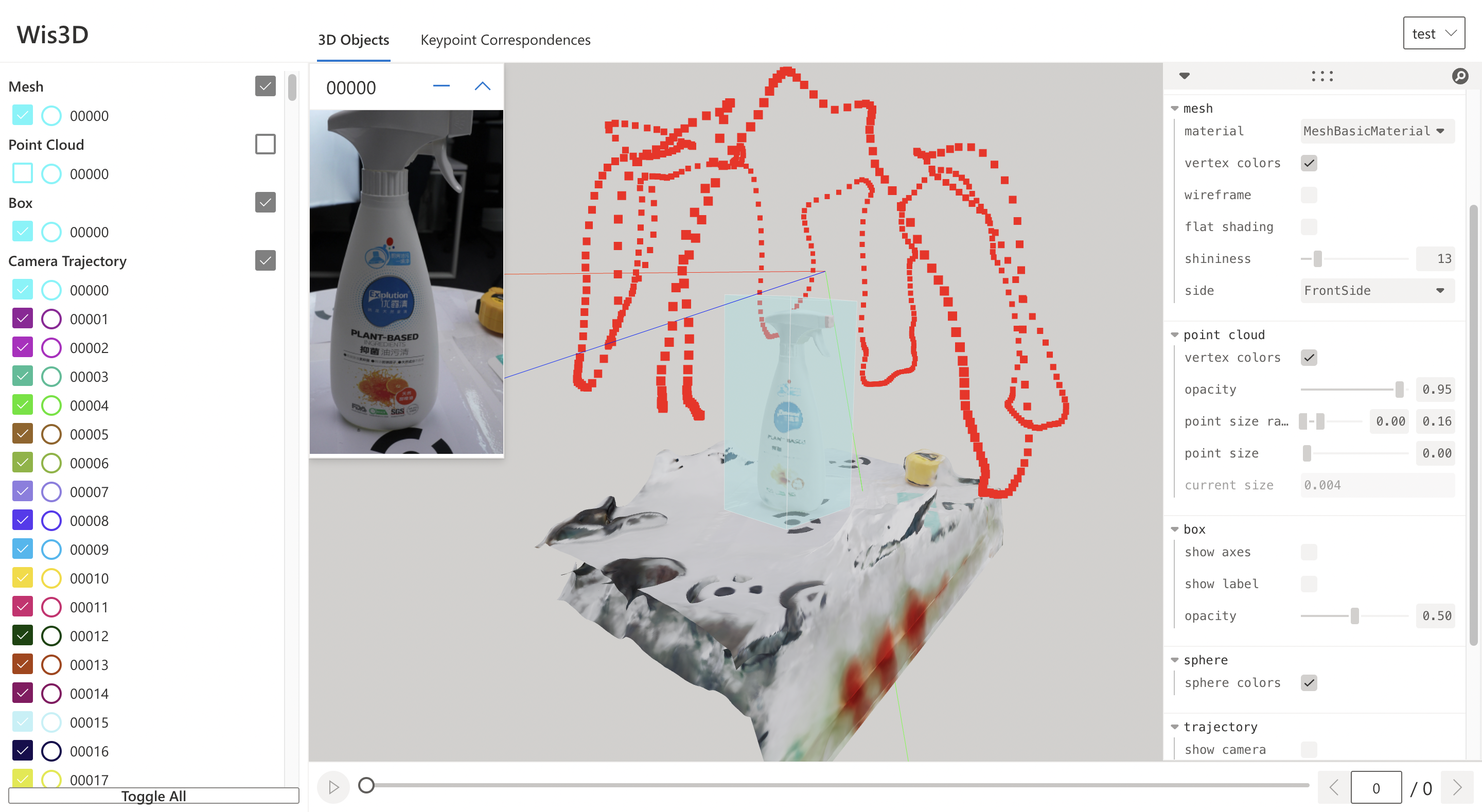
3D Objects is the first tab of the Web page. The leftmost panel on the web page is the object list. The rightmost panel is the control panel. You can adjust the properties of 3D objects in the panel. The middle part displays the main 3D content.
Wis3D provides visualization of mesh, point cloud, camera trajectory, voxel grid, and basic geometry including line, box, and sphere.
Visualization
Mesh
Mesh can be added in three ways:
File path
Mesh definition (vertices, faces, and vertex_colors)
# Add mesh by path
wis3d.add_mesh(path, name: str = None)

# Add mesh by definition
wis3d.add_mesh(vertices, faces, vertex_colors, name: str = None)

# Add mesh loaded by `trimesh`
wis3d.add_mesh(mesh: trimesh.Trimesh, name: str = None)
Wis3D supports four types of materials: MeshBasicMaterial, MeshStandardMaterial, MeshNormalMaterial, and MeshPhongMaterial.
You can set whether to use vertex colors and wireframe for rendering and which side of faces will be rendered - front, back, or both.
At the same time, according to the specific material, you can set whether to use flat shading and specific shininess for display.
Point Clouds
Point clouds can be added in three ways:
File path
Point cloud definition (vertices and colors)
# Add point cloud by path
wis3d.add_point_cloud(path, name: str = None)

# Add point cloud by definition
wis3d.add_point_cloud(vertices, colors, name: str = None)

# Add point cloud loaded by `trimesh`
wis3d.add_point_cloud(pcd: trimesh.PointCloud, name: str = None)
Wis3D can set whether the point cloud is displayed with vertex color and the specific point size of the point cloud.
Camera Trajectory
Camera Trajectory is added through the transformation matrix.
# Add camera trajectory by camera poses
wis3d.add_camera_trajectory(poses, name: str = None)
Wis3D can set whether to display the camera, whether to view the scene from the camera perspective, the size and color of the point of camera position, and the color of the trajectory.
Voxel Grid
Voxel gird can be added in two ways:
File path(support
VOXandBINVOXfile)Boxes(box centers and unified size)
The color can be added to each box when using boxes to add voxel.
# Add voxel by file path
wis3d.add_voxel (path, name: str = None)

# Add voxels by boxes
wis3d.add_voxel (voxel_centers, voxel_size, colors, name: str = None)
Basic Geometry (Line, Box, Sphere)
Wis3D supports adding lines, boxes, and spheres.
Line
Lines are added by vertex sets, and colors can be added to each line at the same time. If color exists, the start points, the endpoints, and color dimensions must be consistent.
# Add lines by vertex set
wis3d.add_lines(start_points, end_points, colors = None, name: str = None)
Wis3D can set whether lines use vertex colors for display and the line width of lines.
Box
Boxes can be added in two ways:
Corners
Definition (position, Euler, and extent)
Simultaneously, the box supports setting and displaying the label attribute.
# Add boxes by corners
wis3d.add_boxes(corners, order: Iterable[int] = (0, 1, 2, 3, 4, 5, 6, 7), labels: Iterable[str] = None, name: str = None)

# Add boxes by definition
wis3d.add_boxes(positions, eulers, extents, labels: Iterable[str] = None, name: str = None)
Wis3D can set whether to show axes and labels of the box and also supports the display of box attributes including position, scale, and rotation.
Sphere
Spheres are added through centers and radius. If the radius is an instance of float, all spheres have the same radius, otherwise, the dimension of the
radius must be the same as the dimension of the center. At the same time, you can set the color for each sphere.
# Add spheres by definition
wis3d.add_spheres(centers, radius, colors = None, name = None)
Image
Image can be added by
File path
Definition
# Add image by file path
wis3d.add_image(path, name: str = None)

# Add image by definition
wis3d.add_image(data, name: str = None)

# Add image by `PIL.Image`
wis3d.add_image(image: Image.Image, name: str = None)